Running open-weight video models on RunPod is cheap per clip and easy to overspend on by accident. Almost every surprise bill comes from one of two things: a GPU left running, or storage nobody remembered. This guide covers where the charges come from and the habits that keep them small. Prices and rules below are from RunPod's pricing and billing docs; check them before you rely on a number, because they change.
Where the money goes
- GPU time. Pods are billed by the second while they run, whether ComfyUI is busy or sitting idle. This is the big one. Current GPU prices are shown in the RunPod console when you deploy a pod.
- Storage. Container disk, volume disk and network volumes each have their own rate, and some keep charging after the pod stops:
| Storage | Running pod | Stopped pod |
|---|---|---|
| Container disk | $0.10/GB/month | Not charged (and erased) |
| Volume disk | $0.10/GB/month | $0.20/GB/month |
| Network volume | $0.07/GB/month | $0.07/GB/month (first 1 TB) |
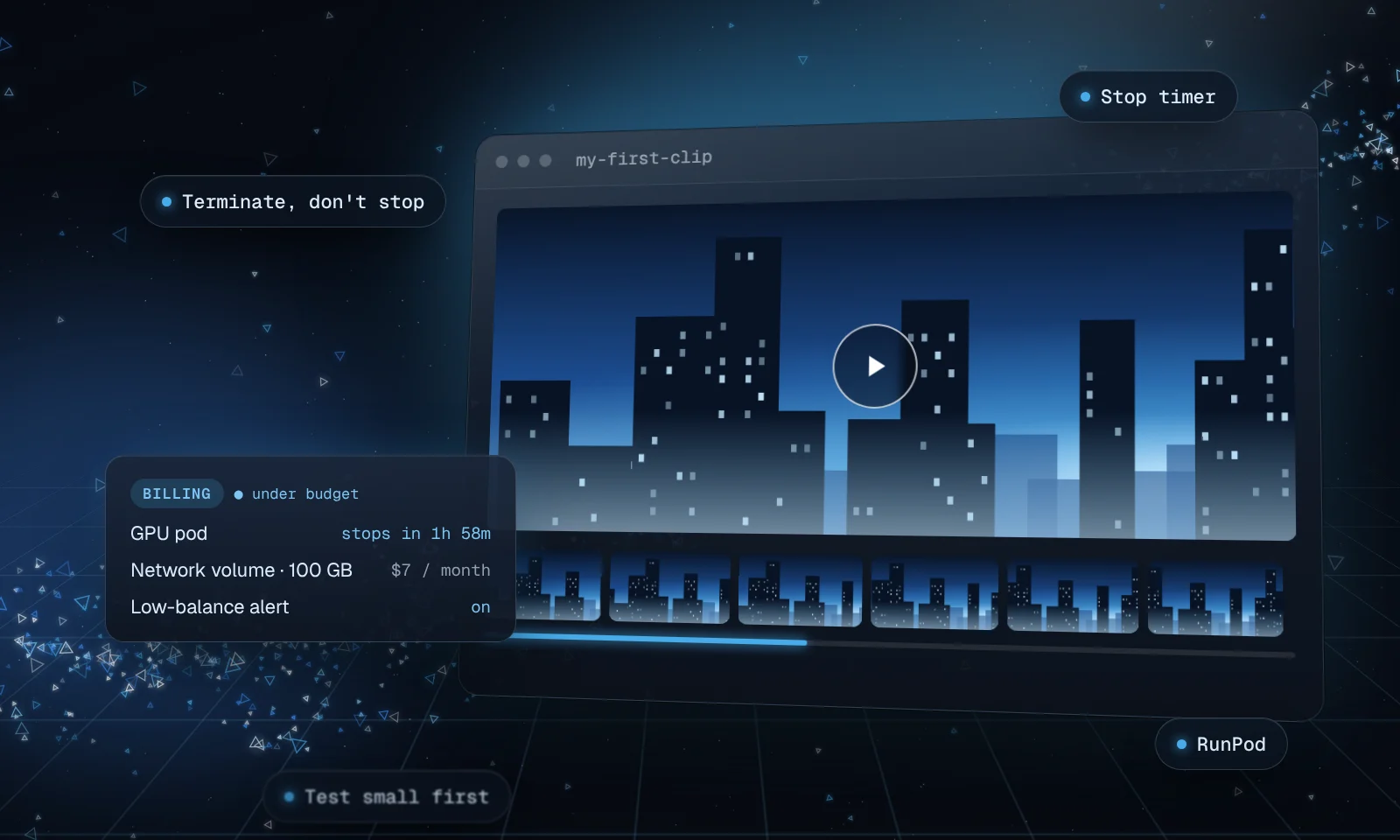
A stopped pod with a 100 GB volume disk costs about $20 a month to keep. The same 100 GB on a network volume costs about $7, and it survives when you terminate the pod.
Seven habits that keep the bill small
Keep models on a network volume
Download model weights once to a network volume instead of to each pod. You stop paying for duplicate copies, you can terminate pods freely, and new pods start with everything already in place. Network volumes are only on Secure Cloud and belong to one data center, so pick that data center for your pods too.
Terminate instead of stopping
Stopping a pod keeps its volume disk, billed at $0.20/GB/month. If your models and outputs live on a network volume, terminate the pod when you finish. You lose nothing you need and stop paying for the disk.
Size the GPU to the model
Check the model's VRAM requirement and pick the smallest GPU that fits it with some headroom. Then try one size up: a faster GPU can cost more per hour but less per clip, because it finishes sooner. Time a test render on each and compare.
Test small, then render big
Work out prompts and settings on short, low-resolution clips, and only render full length and resolution once you like what you see. Most of the time in a session goes into iterating, so make iterations cheap.
Queue renders back to back
ComfyUI has a queue. Line up several prompts or seeds and let them run while you do something else, instead of rendering one, looking, and leaving the GPU idle while you think.
Set a stop timer
RunPod pods don't stop on their own when idle. Its docs show a simple timer you can run in the pod's terminal, which stops the pod after two hours:
sleep 2h; runpodctl pod stop $RUNPOD_POD_ID &Change
2hto fit your session. It's a safety net for the evening you forget.Turn on a low-balance alert
In the console, under Billing, set a low-balance alert so RunPod emails you before your credit runs out. Keep an eye on auto-pay if you use it, since it tops up your balance automatically.
Know what happens at a $0 balance
Heads up
RunPod stops pods automatically when your balance reaches $0. Pods with a network volume are stopped and kept, but pods without one are terminated and their data can't be recovered.
That's one more reason to keep models and finished clips on a network volume, and to download anything you want to keep before a session ends.
A quick pre-flight checklist
- Models are on a network volume in the same data center as the pod
- GPU picked for the model's VRAM, not the biggest one available
- First renders are short and low resolution
- Stop timer running
- Low-balance alert on
- Pod terminated (not just stopped) at the end of the session
New to the setup itself? Start with Run open-weight AI video models on RunPod.