AI is a force multiplier. With the right setup, one person can get through work that used to need a small team. We call that person the operator.
The operator doesn't type most of the code. The operator splits the work into tasks, gives each task to its own Claude Code agent, and reviews what comes back. It uses a lot of tokens. In the hands of a skilled operator, it's worth it.
This guide is the setup we use: a rules file every agent reads, a brief for each task, several sessions running side by side, and review steps before anything is merged. At the end, we show how we made this tutorial's video the same way, mostly from a phone.
What you need
- Claude Code, signed in with a Pro, Max, Team or Enterprise plan
- A project in git with at least one commit, because parallel sessions use git worktrees
- A test, build or lint command Claude can run to check its own work
- About 30 minutes to set it up the first time
Each agent uses its own tokens, so five agents use up your plan's limits roughly five times as fast as one. Start with two or three.
From chatbot to agent
A chatbot answers questions. An agent takes a task and works on it until it's done. That difference is what makes the operator possible.
| Chatbot | Agent | |
|---|---|---|
| What you give it | A question | A task, with a goal and a finish line |
| What it does | Answers in text | Reads files, edits code and runs commands |
| How you check it | Read the answer | Read the changes and the test output |
| How many at once | One conversation | Several sessions in parallel |
What a talented operator can do
None of these jobs is new. The multiplier is running several of them at the same time while you review.
- Fix several bugs at once. One agent per bug, each on its own branch, so the fixes never collide.
- Build and test in parallel. One agent builds a small feature from a written spec while another writes its tests.
- Keep the docs current. An agent updates the README and the changelog after every change.
- Turn data into a report. Give an agent a spreadsheet or a log file and ask for a short summary with charts.
- Research before building. An agent reads a library's docs and comes back with a plan before anyone writes code.
How the pieces fit
| Piece | What it is | Where it lives |
|---|---|---|
| Rules | Standing instructions every agent reads | CLAUDE.md |
| Brief | One task, written like a ticket | Your prompt |
| Agents | One Claude Code session per task | A git worktree each |
| Helpers | Focused assistants for side jobs, like review | .claude/agents/ |
| Guardrails | Rules Claude Code enforces, not just reads | Hooks in .claude/settings.json |
| You | Approve plans, review results and merge | Terminal, desktop app or phone |
Step 1: Write the rules once
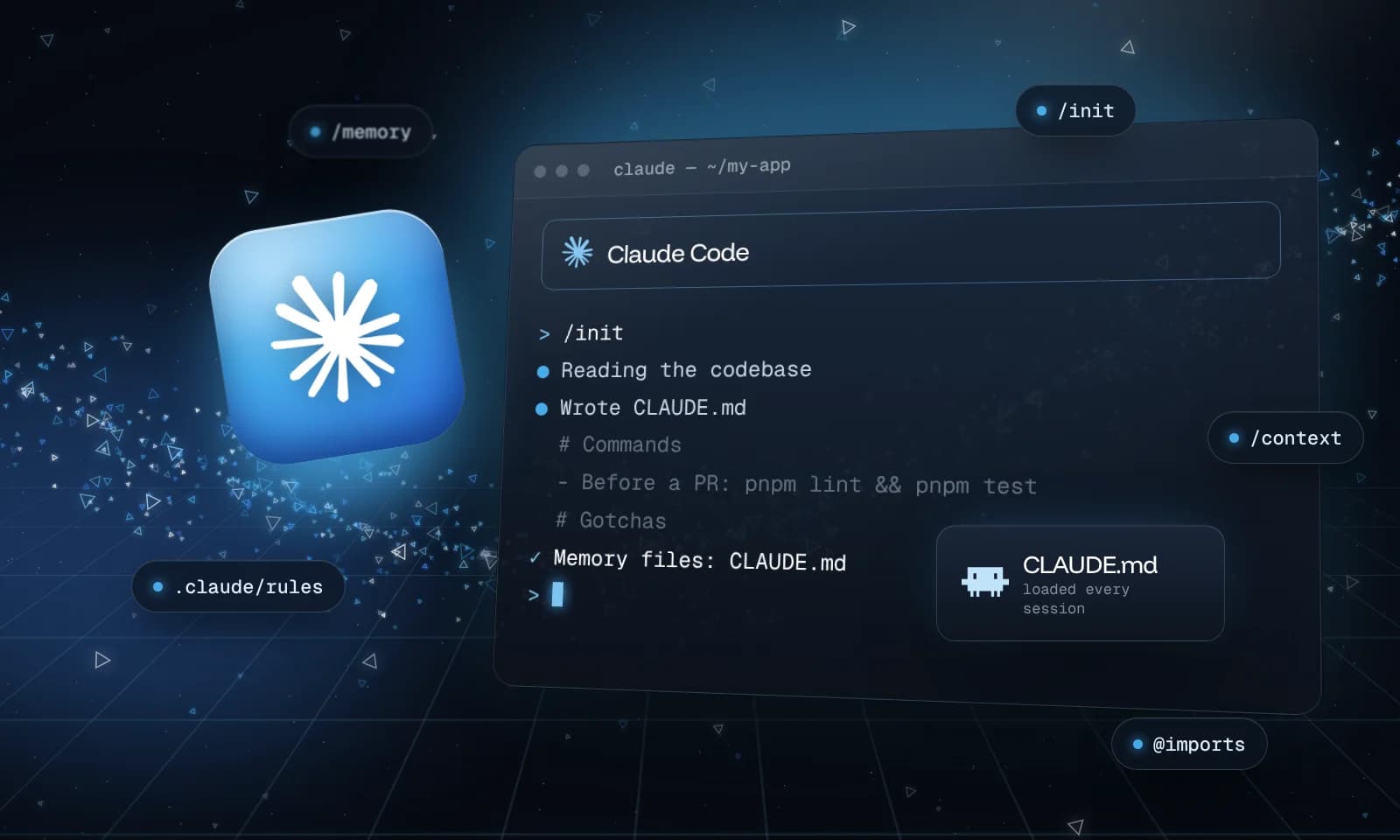
Every agent reads CLAUDE.md at the start of every session, so it's where you write down what you'd otherwise repeat to each one. For a team of agents, the most useful rules say how to check the work, how to stay in its lane, and how to report back:
# How to check your work
- Run `npm test` and `npm run lint` before you say a task is done
- In your summary, paste the command you ran and the last lines of its output

# How we work
- One task per session. If you find a second problem, tell me instead of fixing it
- Stay on your own branch. Never push to main
- Ask before you add a dependency or change the database schema

# When you finish
- Summarize what changed in 3 to 5 bullets
- List anything you skipped or couldn't check
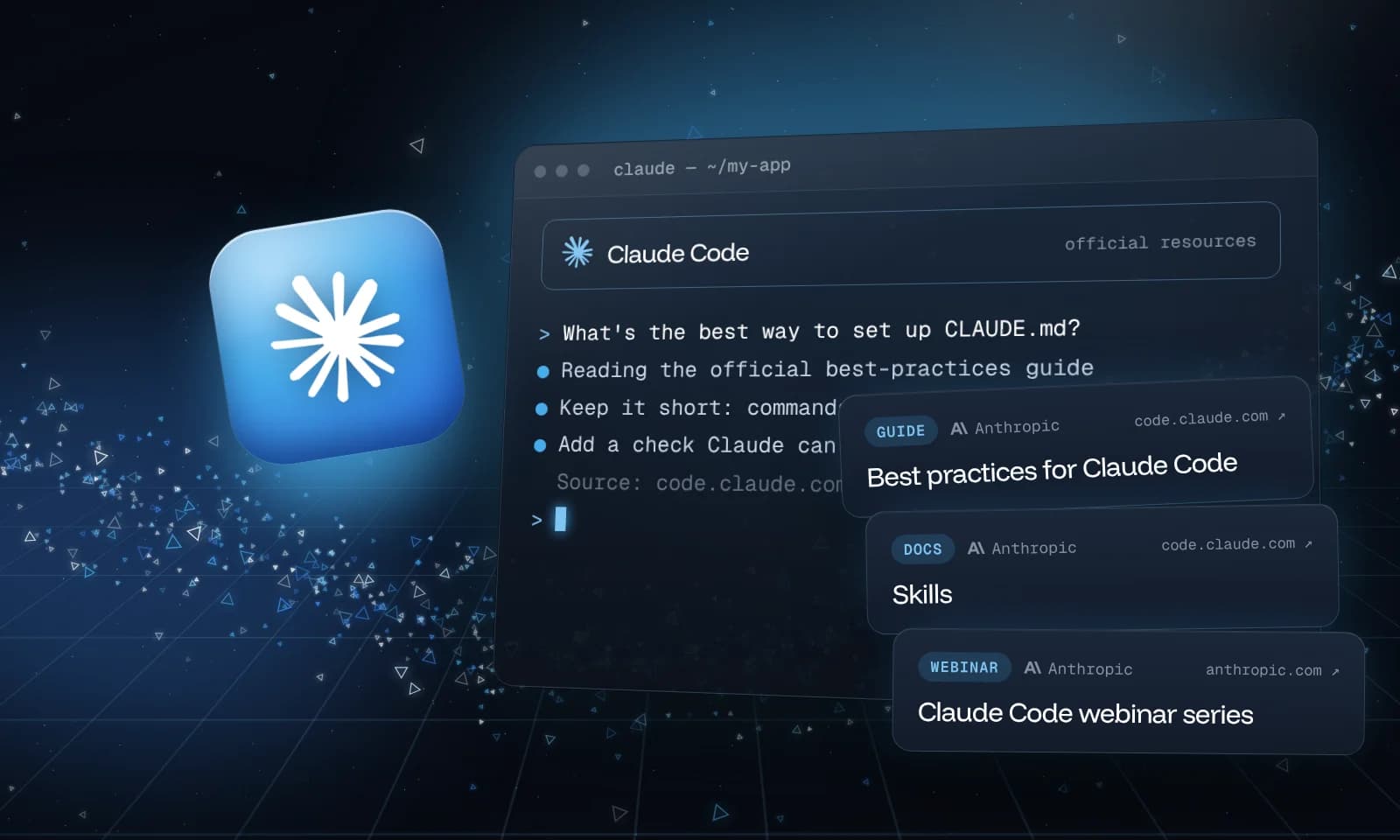
Swap in your own commands. Our CLAUDE.md guide covers where the file goes and how to check that Claude loaded it.
Step 2: Write the brief like a ticket
A vague task gets a vague result. Give each agent a brief with a clear finish line:
Task: [one sentence]
Why: [the problem this solves]
Done means: [the test or check that proves it works]
Stay inside: [the files or folders it may change]
Don't: [what to leave alone]
Before you change anything, show me a short plan and wait for my OK.
Here's one filled in:
Task: Fix the order dates that show one day early for customers in Asia.
Why: Dates are converted to UTC twice before they're displayed.
Done means: A new test for a Tokyo customer passes, and npm test passes.
Stay inside: src/lib/dates.ts and its tests.
Don't: Change the database or any API responses.
Before you change anything, show me a short plan and wait for my OK.
| Vague | Clear |
|---|---|
| Fix the dates | Fix the order dates that show one day early in Asia |
| Make sure it works | A new test for a Tokyo customer passes |
| Clean up the code | Stay inside src/lib/dates.ts and its tests |
The last line of the brief puts a review step before any edit. You can also start the session in plan mode, covered in Step 5.
Step 3: Run agents side by side
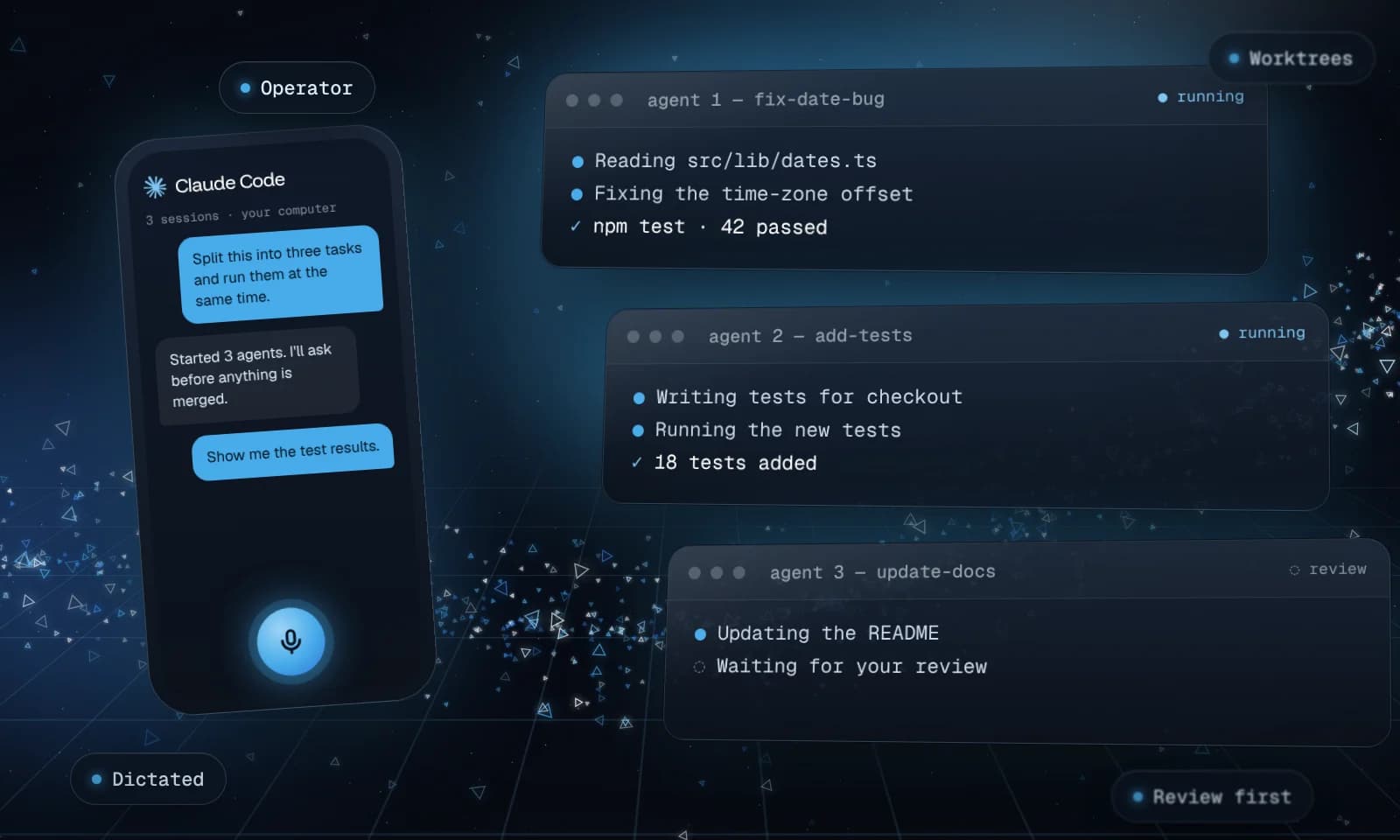
Two agents editing the same folder will overwrite each other's work. Claude Code solves this with git worktrees: each session gets its own copy of the project on its own branch. Open a terminal for each task:
claude --worktree fix-date-bug
claude --worktree add-checkout-tests
claude --worktree update-docs
-w is the short form. Each worktree lives in .claude/worktrees/<name>/ on a branch called worktree-<name>. Add .claude/worktrees/ to your .gitignore. When you exit a session with no changes left, Claude Code removes its worktree and branch, and if there are changes, it asks whether to keep them. Paste a brief into each session and let them work.
If you'd rather not keep a terminal open for every agent, start them in the background and check on them from one place:
claude --bg "Fix the order dates that show one day early in Asia. Done means npm test passes."
claude agents
claude agents opens agent view, where you can see every background session, open one, and read its progress. Background agents are a research preview, so details may change.
Note
Claude Code also has agent teams, where one session leads and other sessions work as teammates that message each other. It's experimental, off by default, and uses many more tokens. Start with worktrees, and see Anthropic's agent teams page when you outgrow them.
Step 4: Give side jobs to subagents
A subagent is a helper that a session calls for one focused job, with its own context window and its own tools. A reviewer is the most useful one to start with, because it checks work with fresh eyes. Save this as .claude/agents/reviewer.md in your project:
---
name: reviewer
description: Reviews a finished change for bugs, missing tests and edits outside the task. Use after a task is done and before it is merged.
tools: Read, Glob, Grep, Bash
model: sonnet
---

You review changes. Read the diff against main and run the tests, then report:
1. Bugs or risky edits, with the file and line
2. Missing tests
3. Anything that doesn't match the task
Don't edit any files. Report only.
Then, in any session:
Use the reviewer subagent to check this branch before I merge it.
The model line lets a helper run on a smaller, cheaper model than the main session. Anthropic's subagents page lists every field.
Step 5: Add guardrails Claude Code enforces
A line in CLAUDE.md works most of the time. For anything that must never happen, use settings that Claude Code enforces whatever the model decides.
Pick a permission mode
Press Shift+Tab in a session to switch modes, or start with claude --permission-mode plan.
| Mode | What it does | Use it for |
|---|---|---|
| Default | Asks before edits and commands | Getting started, or any risky task |
| Plan | Reads and plans, but changes nothing | Checking an agent's plan before it starts |
| Accept edits | Edits files without asking, still asks for commands | Agents you trust on a small task |
| Auto | A separate model checks each action and blocks risky ones | Long tasks where prompts would stall the work |
Auto mode needs a supported model, and Team and Enterprise admins can turn it off. Anthropic's permission modes page has the details.
Block what must never happen
Hooks are commands Claude Code runs at fixed points. A PreToolUse hook runs before every tool call, and if it exits with code 2, the call is blocked. This one stops force pushes and pushes to main. Add it to .claude/settings.json:
{
  "hooks": {
    "PreToolUse": [
      {
        "matcher": "Bash",
        "hooks": [
          {
            "type": "command",
            "command": "\"$CLAUDE_PROJECT_DIR\"/.claude/hooks/block-risky-git.sh"
          }
        ]
      }
    ]
  }
}
Then save this script as .claude/hooks/block-risky-git.sh and run chmod +x on it. It needs jq:
#!/usr/bin/env bash
# Stops force pushes and pushes to main. Exit code 2 blocks the command,
# and Claude sees the message on stderr.
cmd=$(jq -r '.tool_input.command // ""')
if echo "$cmd" | grep -Eq 'git push.*(--force|-f( |$))|git push.* main( |$)'; then
  echo "Blocked: no force pushes and no pushes to main. Open a pull request instead." >&2
  exit 2
fi
exit 0
We tested it with sample commands. It blocks git push origin main, git push -f and git push --force-with-lease, and allows git push -u origin worktree-add-tests and git push origin main-menu-fix. PreToolUse hooks run before the permission mode is checked, so this block holds in every mode.
Get a ping when an agent needs you
With several agents running, you won't be watching each one. On a Mac, this Notification hook shows a system notification whenever Claude Code is waiting for you. Add it inside the same "hooks" object:
"Notification": [
  {
    "matcher": "",
    "hooks": [
      {
        "type": "command",
        "command": "osascript -e 'display notification \"Claude Code needs your attention\" with title \"Claude Code\"'"
      }
    ]
  }
]
Step 6: Review before you merge
Reviewing is the operator's real job. Before you merge anything, ask for evidence, not a promise:
Show me what you changed: a short summary of the diff, the test command you ran with its output, and anything you couldn't check. Don't merge anything yet.
If it looks right, ask the agent to commit and open a pull request. If it doesn't, say what's wrong in one or two sentences. After two failed corrections, it's usually faster to run /clear and write a better brief than to try a third time.
Run it from your phone
Your agents don't need you at the desk. Remote Control connects the Claude app on your phone to a Claude Code session running on your own computer, so you can send prompts, read results and steer from anywhere.
Start a session with Remote Control on:
claude --remote-control
Or turn it on in a session that's already open with /remote-control (or /rc). Then open the Claude app on your phone and go to the Code tab. Run /mobile in Claude Code for a QR code that gets you the app.
- Plans: Remote Control works on Pro, Max, Team and Enterprise. On Team and Enterprise, an owner has to turn it on first. It doesn't work with an API key.
- Your computer stays on. The session runs on your machine, so the computer has to stay awake with Claude Code running.
- Talk instead of typing. Your phone's dictation works in the prompt box, so you can speak each brief.
Tip
On Pro and Max, Claude Code's Projects beta takes this further: one project conversation splits work into threads that run in parallel, and you can check and steer every thread from your phone. It's rolling out gradually. See Anthropic's Projects page.
Watch your token use
Running agents in parallel spends your plan's limits faster. Check where it's going:
/usageshows your plan's usage limits and an estimate for the current session./costand/statsopen the same screen./contextshows what's filling the current session's context window.
To spend less: keep one task per session, run /clear before starting a new task in the same session, put helpers on a smaller model, and stop background agents you no longer need.
When it goes wrong
| If you see | Do this |
|---|---|
| An agent drifts into other work | Press Esc, restate the task, and keep one task per session |
| It says "done" but never ran the tests | Make "Done means" a command, and ask for its output |
| Two agents change the same files | Give each one a worktree and a "Stay inside" line |
| Your limits run out fast | Run fewer agents at once, and put helpers on a smaller model |
| You type the same correction every day | Add it to CLAUDE.md |
| Something must never happen | Use a hook, not a line in CLAUDE.md |
How we made this tutorial's video
We made the video for this tutorial the same way. Much of the orchestration happened in the Claude Code mobile app, and every prompt was dictated by voice. A Mac did the work. Claude used computer use to operate its apps, Claude in Chrome for the browser, and the terminal for rendering. The computer was only the worker: when it needed a permission approved, we walked over and approved it there.
Script
Claude Code wrote the script from our outline, in short, plain sentences.
Narration
ElevenLabs read the script in the voice "Eric". Each line was generated in order with request stitching, so the voice stays consistent from start to finish.
Demos
Claude recorded each demo in a sample project, using computer use and Claude in Chrome to work the screen.
Motion
HyperFrames rendered the diagrams, titles and captions from HTML, with Three.js for 3D shots.
Music
The background music came from Suno.
Final cut
FFmpeg mixed the voice and music, burned in the captions and encoded the video.
Review
We watched a short 1080p sample first, then the full cut at 1080p, and only then rendered the final version.
What it takes to run this
| What | Why it's needed | Good to know |
|---|---|---|
| Claude Code on Pro or Max | Computer use needs one of these plans | Not available on Team or Enterprise |
| Computer use | Lets Claude see the screen and use the mouse and keyboard | Research preview, macOS only. Turn it on with /mcp, then allow Accessibility and Screen Recording for your terminal in macOS settings |
| Claude in Chrome | Lets Claude open pages, click and fill in forms | Chrome or Edge with the extension, version 1.0.36 or later. Start with claude --chrome |
| Remote Control | Steer from your phone | The computer stays on the whole time |
| An ElevenLabs account | The narration | Keep the API key in an environment variable, never in a prompt |
| HyperFrames | Renders video from HTML | Needs Node.js 22 or later and FFmpeg |
| Disk space | Video frames take a lot of room | We render to an external drive |
Only one session can use computer use at a time, and pressing Esc stops it. Anthropic's computer use page covers the setup.
The code behind it
Narration, one line at a time. Each request passes the IDs of up to three earlier requests, so ElevenLabs keeps the same tone across lines. The response also includes the timing of every character, which is what we used for the captions:
import base64
import os

import requests

VOICE_ID = "your-voice-id"   # from the voice's page in ElevenLabs
MODEL_ID = "your-model-id"   # use the same model for every line
URL = f"https://api.elevenlabs.io/v1/text-to-speech/{VOICE_ID}/with-timestamps"
HEADERS = {"xi-api-key": os.environ["ELEVENLABS_API_KEY"]}

lines = open("script.txt").read().split("\n\n")
request_ids = []
for i, line in enumerate(lines):
    body = {"text": line, "model_id": MODEL_ID, "previous_request_ids": request_ids[-3:]}
    response = requests.post(URL, headers=HEADERS, json=body)
    response.raise_for_status()
    request_ids.append(response.headers["request-id"])
    data = response.json()  # audio_base64, plus per-character timings in "alignment"
    with open(f"line-{i:03d}.mp3", "wb") as f:
        f.write(base64.b64decode(data["audio_base64"]))
Request IDs only work for about two hours, and stitching isn't available for the eleven_v3 model. ElevenLabs' request stitching guide has the rest.
Motion graphics, from a HyperFrames project:
npx hyperframes init operator-video
npx hyperframes preview
npx hyperframes render --fps 60 --output chapter-1.mp4
The final mix. This lowers the music under the voice, burns in the captions and encodes the result:
ffmpeg -i picture.mp4 -i narration.wav -i music.wav \
  -filter_complex "[2:a]volume=0.15[m];[1:a][m]amix=inputs=2:duration=first:normalize=0[a];[0:v]subtitles=captions.srt[v]" \
  -map "[v]" -map "[a]" -c:v libx264 -crf 18 -pix_fmt yuv420p -c:a aac -b:a 192k final.mp4
Your first week as an operator
- Write the brief like a ticket. A task, a reason, and a finish line Claude can check.
- Give each agent one job. One task, one session, one worktree.
- Make every result easy to review. Ask for the diff, the test output and what was skipped, every time.
Start with two agents on small, separate tasks. Add a third once reviewing the first two feels easy.
How we checked this
We checked every command, flag and setting on this page against Anthropic's Claude Code documentation and the HyperFrames and ElevenLabs docs on November 4, 2026, and ran the hook script and the FFmpeg command on sample files. Background agents, computer use and Projects are previews or betas, so check the linked pages if something looks different.
Anthropic's docs
- DocsAnthropicRun parallel sessions with worktreescode.claude.com
How
--worktreeworks, where worktrees live and how they're cleaned up. - DocsAnthropicSubagentscode.claude.com
Every field for
.claude/agents/files, and when to use a subagent instead of a new session. - DocsAnthropicHooks guidecode.claude.com
Run your own commands at fixed points, including blocking a tool call before it runs.
- DocsAnthropicRemote Controlcode.claude.com
Control a Claude Code session on your computer from the Claude app or claude.ai/code.
- DocsAnthropicComputer usecode.claude.com
Let Claude Code see your screen and use your Mac's apps, and the permissions it needs.
- DocsAnthropicClaude in Chromecode.claude.com
Let Claude Code open pages, click and fill in forms in Chrome or Edge.
Keep going
New to the rules file? Start with How to write a CLAUDE.md that Claude Code follows. For more on agents that drive a screen, read What computer-use agents can do, and how to run them safely, then Let Claude Code drive a browser with Playwright MCP.